How to Block Ads: The Complete Guide to Ad-Free Browsing
how to block ads
How to Block Ads: The Complete Guide to Ad-Free Browsing
Pop-ups covering half the screen. Autoplay videos blaring the moment a page loads. Trackers following you from site to site. Online ads have gone from a minor annoyance to a genuine drag on browsing speed, privacy, and sanity. The good news: blocking ads is easier than most people think, and you don’t need to be tech-savvy to do it.
This guide walks through every practical way to block ads — from one-click browser extensions to network-wide solutions that cover every device in your home.
Why Block Ads?
Before diving into the how, it’s worth understanding the why. Ad blocking isn’t just about avoiding annoying banners.
Faster Page Load Times
Ads pull in extra scripts, images, and video content from third-party servers. Blocking them means pages load with less data to fetch, which is especially noticeable on slower connections or mobile data.
Better Privacy
Many ads come bundled with trackers that follow your browsing activity across the web to build an advertising profile. Blocking ads also blocks a large share of this tracking.
Reduced Malware Risk
“Malvertising” — malicious code hidden inside ad networks — has been used to distribute malware without requiring any click from the user. Fewer ads loading means fewer chances for malicious code to run.
How to Block Ads in Your Browser
The simplest starting point for most people is a browser-based ad blocker.
Use a Browser Extension
Extensions are the most popular way to block ads because they’re free, quick to install, and require no technical setup. Some of the most widely used options include:
- uBlock Origin — a lightweight, open-source extension available for Chrome, Firefox, and Edge that blocks ads, trackers, and malware domains using regularly updated filter lists.
- AdGuard — offers both a browser extension and a standalone app that blocks ads across all apps on a device, not just the browser.
- AdBlock Plus — one of the longest-running ad blockers, with a large user base and customizable filter settings.
To install any of these, search for the extension in your browser’s official web store, click “Add to Browser,” and the tool will start blocking ads automatically — no configuration required for most sites.
Use a Privacy-Focused Browser
Some browsers block ads and trackers by default, without needing a separate extension. Brave is built specifically around this idea, blocking ads and third-party trackers out of the box while also offering a built-in option to view privacy reports for each site you visit.
Adjust Built-In Browser Settings
Chrome, Firefox, and Safari all include some native ad and pop-up controls, though they’re generally less thorough than a dedicated extension:
- Chrome: Settings > Privacy and Security > Site Settings > Pop-ups and redirects, where you can block intrusive or unwanted content site by site. Google’s own support documentation covers this in detail at support.google.com.
- Firefox: Includes Enhanced Tracking Protection, which blocks many ad trackers automatically in Settings > Privacy & Security.
- Safari: Offers “Prevent Cross-Site Tracking,” which limits how advertisers can follow you between sites.
How to Block Ads Across Your Entire Network
For blocking ads on every device connected to your home Wi-Fi — including smart TVs, phones, and tablets that don’t support browser extensions — a network-level solution works better than app-by-app blocking.
Set Up a DNS-Level Ad Blocker
DNS-based tools block ads before they even reach your device by filtering requests at the network level. Pi-hole is one of the most popular free options, running as a small piece of software on a home server or Raspberry Pi that filters ad and tracker domains for every device on the network.
For a setup that doesn’t require dedicated hardware, cloud-based DNS services like NextDNS offer similar network-wide ad blocking that can be configured directly on a router or individual devices.
Configure Your Router
Some routers allow custom DNS settings to be applied directly, which means once configured, every device that connects to that Wi-Fi network automatically benefits from ad blocking — no individual app installs needed.
How to Block Ads on Mobile Devices
Ads can be just as intrusive on phones and tablets, particularly inside apps rather than just browsers.
iOS
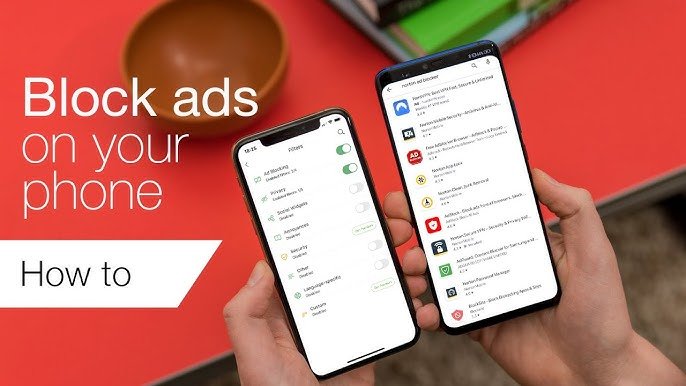
Apple allows content-blocker apps through Safari settings (Settings > Safari > Content Blockers), where tools like AdGuard can be enabled to filter ads system-wide within Safari.
Android
Android doesn’t support content blockers the same way iOS does, but browser-level solutions like Brave or Firefox with uBlock Origin installed work well. Ad-blocking DNS profiles, such as those offered by AdGuard’s mobile app, can also filter ads across other apps.
A Few Things to Keep in Mind
Blocking ads isn’t without trade-offs. Many free websites, including news outlets and independent creators, rely on ad revenue to stay running. Some sites detect ad blockers and restrict access until they’re disabled. Whitelisting trusted sites in your ad blocker settings is a simple way to support the creators you value while still blocking ads everywhere else.
Final Thoughts
Blocking ads comes down to picking the right tool for how you browse. A browser extension like uBlock Origin covers most everyday needs, a privacy-focused browser like Brave offers built-in protection, and a DNS-level tool like Pi-hole extends that protection to every device on your network. Start with a browser extension if you want a quick win, then layer on network-wide blocking once you’re ready for full coverage across every screen in the house.
About The Author