Playlisty Review: Move Playlists Between Spotify & Apple
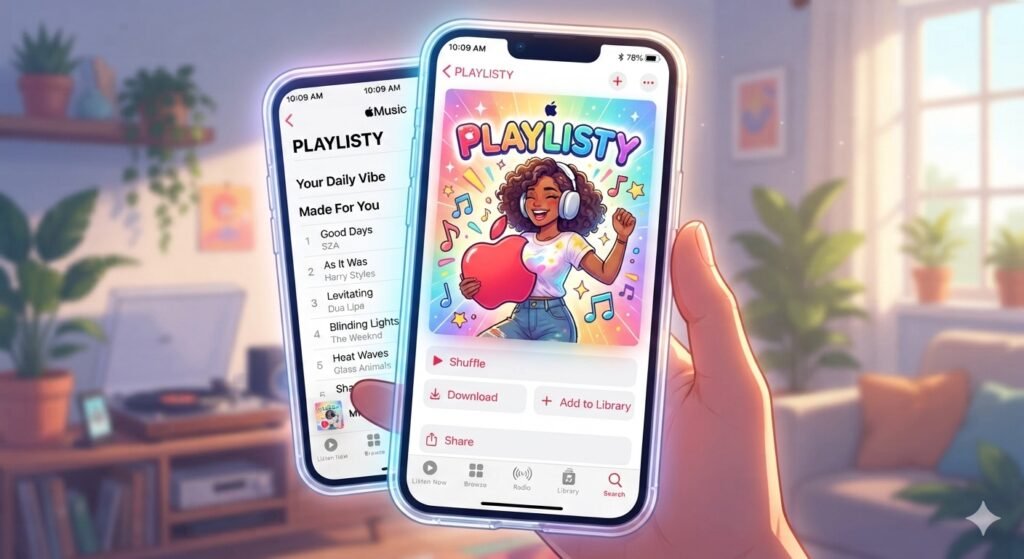
playlisty
Playlisty Review: Move Playlists Between Spotify & Apple Music
Estimated read time: 6 minutes
So you’ve switched streaming services. Maybe a mate convinced you Apple Music sounds better. Maybe Spotify’s price hike finally pushed you over the edge. Either way, you’re now staring at years of carefully built playlists, trapped on the app you’re trying to leave. Painful, honestly. I’ve been there.
That’s exactly the problem Playlisty exists to solve.
Table of Contents
- What Is Playlisty?
- Why Does This Even Need an App?
- How Does Playlisty Actually Work?
- Step-by-Step: Transferring a Playlist
- What Makes It Different From Other Transfer Tools?
- Is Playlisty Free?
- Who Should Actually Use It?
- A Few Practical Tips
- FAQ
- Final Thoughts
What Is Playlisty?
Playlisty is a playlist transfer tool, built to move your music, playlists, liked songs, saved albums, followed artists, from one streaming service to another. Specifically, it bridges the gap between Spotify and Apple Music, in both directions.
There isn’t one single app, actually. There’s “Playlisty for Apple Music,” which pulls your stuff into Apple Music, and “Playlisty for Spotify,” which does the reverse, bringing content into Spotify. Two separate, focused tools, rather than one bloated app trying to do everything at once.
Built by a company called Obdura, it’s available on iPhone, iPad, and Mac. No subscription required, which, honestly, is a relief in a world where every app seems to want a monthly fee for something you’ll use twice.
Why Does This Even Need an App?
Good question, honestly. You’d think switching streaming services would be simple. Type in your playlist name, hit copy, done, right?
Nope. Not even close. Spotify and Apple Music don’t actually agree with each other on much. Different catalogues. Different track IDs. Different versions of the same song floating around, studio version, remaster, live recording, regional release. A song titled one way on Spotify might be listed completely differently on Apple Music, or exist in three different versions that all sound almost right, but not quite.
Manually rebuilding a 200-song playlist, checking each track matches, that’s not an afternoon project. That’s a weekend you’ll never get back. Playlisty automates that painful matching process instead.
How Does Playlisty Actually Work?
Here’s the simple version. You connect both your Spotify and Apple Music accounts to the app. From there, Playlisty scans your existing playlists, liked songs, saved albums, and followed artists on the service you’re leaving.
For each track, it searches the destination service and tries to find the closest accurate match, not just “a song with a similar name,” but genuinely the right version, matching studio recordings to studio recordings, live versions to live versions, where possible.
Before anything gets saved permanently, you get a preview screen. You can check the matches, fix anything that looks wrong, swap out a dodgy match for the correct one, and only then confirm the save. That “preview before committing” step is honestly the bit that sets it apart from a lot of quicker, sloppier transfer tools.
You’re not limited to just moving between the two big platforms either. Playlisty can also pull in playlists from YouTube, Deezer, random websites, even a messy pasted block of text or a CSV file.
Step-by-Step: Transferring a Playlist
- Download the correct version, Playlisty for Apple Music if you’re moving into Apple Music, or Playlisty for Spotify if you’re moving into Spotify.
- Connect both accounts, the service you’re leaving and the one you’re joining.
- Select the playlists, liked songs, albums, or artists you want to bring across.
- Let Playlisty search for the best matching tracks on the destination platform.
- Review the preview screen and fix any mismatched tracks manually.
- Confirm and save, your playlist now exists on the new platform.
What Makes It Different From Other Transfer Tools?
I think the honest answer is attention to detail. A lot of playlist transfer tools prioritise speed, get everything moved fast, don’t worry too much about accuracy. Playlisty takes a more careful, almost fussy approach instead.
Music catalogues are genuinely messy, if you’ve never thought about it before. Multiple versions of the same track exist constantly, remasters, deluxe editions, radio edits, live recordings, regional releases that only exist in certain countries. A quick, automatic matcher might just grab the first vaguely similar result and move on. Playlisty’s whole pitch is refusing to do that, matching the actual right version instead of settling for “close enough.”
Is Playlisty Free?
Mostly, yes. Both apps are free to download, and the Spotify-bound version reportedly lets you import an unlimited number of playlists without charge. There are some limits though, playlists sourced from certain platforms, Apple Music and YouTube specifically, get capped at 20 tracks unless you pay a small, one-off unlock fee.
No ongoing subscription required either way, which genuinely makes a nice change from most apps in this space that quietly nudge you toward a recurring monthly charge.
Who Should Actually Use It?
Pretty obvious audience, honestly:
- Anyone switching from Spotify to Apple Music, or the reverse, and dreading rebuilding playlists from scratch.
- People with large, carefully organised music libraries who genuinely care about track accuracy, not just “something similar.”
- Users who’ve collected playlists from scattered sources, random websites, YouTube, old CSV exports, and want them consolidated into one proper streaming library.
If you’ve only ever got two or three small playlists, honestly, you could probably just rebuild them manually without too much hassle. But for anyone with years of accumulated music, the time saved here is genuinely significant.
A Few Practical Tips
If you do give it a go, a couple of things worth keeping in mind:
- Always use the preview screen before saving. Don’t just trust the automatic matches blindly, especially for tracks with multiple versions floating around.
- Expect a small one-off charge if you’re importing larger playlists from certain sources, it’s not hidden, but it’s worth knowing in advance rather than being surprised mid-transfer.
- Give it time on bigger libraries. Matching thousands of tracks accurately takes a bit longer than a basic “fast but sloppy” transfer tool would.
FAQ
Is Playlisty free to use? Yes, both apps are free to download. A small one-off charge applies only when importing larger playlists (over 20 tracks) from certain sources like Apple Music or YouTube.
Does Playlisty require a subscription? No. It uses a one-off unlock fee for larger imports rather than a recurring subscription model.
Can Playlisty transfer playlists both ways? Yes, but through two separate apps: Playlisty for Apple Music (imports into Apple Music) and Playlisty for Spotify (imports into Spotify).
Does Playlisty work with services other than Spotify and Apple Music? Yes. It can also import from YouTube, Deezer, websites, CSV files, and pasted text lists.
Will Playlisty get the exact right version of every song? It aims to, using careful matching for remasters, live versions, and regional releases, but the preview screen lets you manually fix any mismatches before saving.
Final Thoughts
Switching streaming platforms shouldn’t mean abandoning years of carefully built playlists, but without a tool like this, that’s basically what happens. Playlisty solves a genuinely annoying, very specific problem, and solves it with more care than most transfer tools bother putting in.
If you’re stuck between Spotify and Apple Music, dreading the rebuild, this is honestly worth the small one-off cost. Beats spending your Saturday manually re-adding three hundred songs, trust me on that one.
Useful links:
About The Author