How to Set Up Voicemail: A Step-by-Step Guide for Every Phone
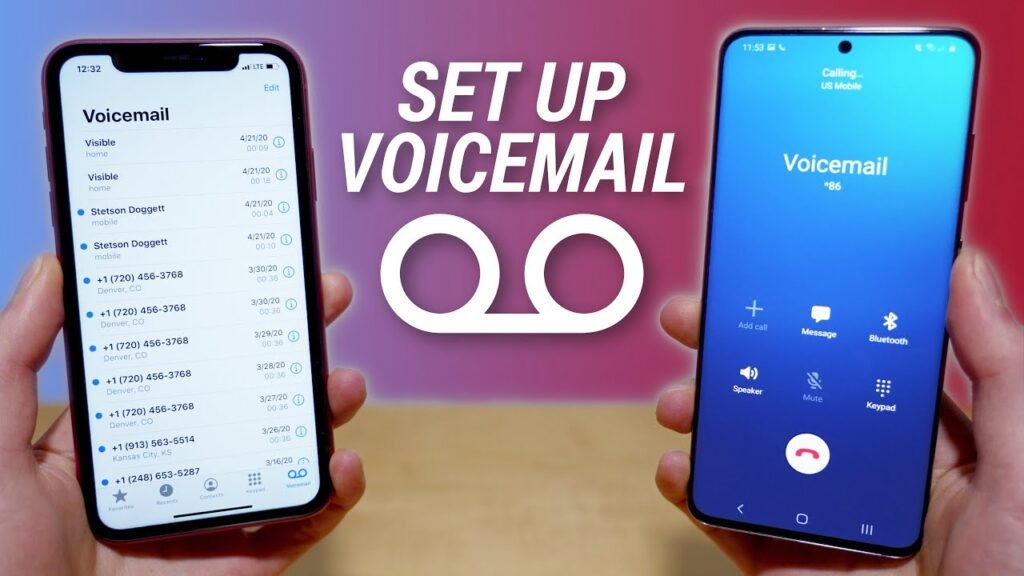
how to set up voicemail
How to Set Up Voicemail: A Step-by-Step Guide for Every Phone
Missed calls happen to everyone, but missed messages don’t have to. If you’ve ever picked up your phone to find a missed call and no way for the caller to leave a message, chances are your voicemail isn’t set up yet. The good news: setting up voicemail takes just a few minutes, no matter what kind of phone you have.
This guide walks you through how to set up voicemail on an iPhone, an Android phone, and a traditional landline, plus tips for recording a greeting that actually sounds professional.
What Is Voicemail and Why You Need It
Voicemail is a built-in feature that lets callers leave a recorded message when you can’t answer the phone. Without it set up, callers who reach your voicemail often just hear a generic “this mailbox has not been set up” message — and many will hang up without leaving any information at all.
Setting up voicemail ensures you never miss important details from a call, whether it’s a client, a doctor’s office, or a family member. It also gives you the chance to control how you present yourself with a custom greeting.
How to Set Up Voicemail on an iPhone
Apple makes voicemail setup simple, and it only needs to be done once per device.
Step 1: Open the Phone App
Tap the Phone app on your home screen, then select the Voicemail tab at the bottom of the screen.
Step 2: Tap Set Up Now
You’ll see a Set Up Now or Set Up button. Tap it to begin.
Step 3: Create a Voicemail Password
Enter a numeric password (usually 4 to 7 digits), then confirm it by entering it again. This password protects your voicemail from unauthorized access.
Step 4: Choose or Record a Greeting
You can select Default to use Apple’s standard greeting, or choose Custom to record your own. If you go custom, tap Record, speak your greeting, then tap Stop. Play it back to make sure it sounds right, then tap Save.
Newer iPhones also support Live Voicemail, which transcribes messages in real time as someone is leaving them, letting you decide whether to pick up the call. This can be turned on under Settings > Apps > Phone. For the full official walkthrough, Apple’s support page on setting up voicemail covers every iPhone model and iOS version.
How to Set Up Voicemail on an Android Phone
The general process is similar across Android devices, though the exact menu names can vary slightly by manufacturer and carrier.
Step 1: Open the Phone App
Tap the Phone icon, then go to the dial pad.
Step 2: Press and Hold “1”
On most Android phones, pressing and holding the number 1 key connects you directly to your voicemail setup line.
Step 3: Follow the Voice Prompts
You’ll typically be asked to create a PIN, then record your name and a greeting. Follow the automated instructions carefully, since steps can vary by carrier.
Step 4: Check for a Visual Voicemail App
Some carriers, including T-Mobile and AT&T, use a dedicated visual voicemail app instead of the built-in Phone app. If your phone doesn’t show a voicemail setup option, check your app drawer or the Play Store for your carrier’s voicemail app. Carrier-specific guides, like AT&T’s voicemail setup instructions, can help if you run into carrier-specific steps.
How to Set Up Voicemail on a Landline or Home Phone
If you still use a home or business landline, setup usually happens through your provider’s automated system rather than an app.
Step 1: Dial Your Voicemail Access Number
This is often a short code like *98 or a number provided by your phone service.
Step 2: Enter a Temporary PIN
New accounts usually come with a temporary PIN, often your full phone number. You’ll be prompted to change it to a personal PIN between 6 and 10 digits.
Step 3: Record Your Name and Greeting
Follow the prompts to record your name and an outgoing greeting for callers.
Providers like Verizon and AT&T offer detailed setup instructions for both digital and traditional landline service if you get stuck mid-setup.
Tips for Recording a Great Voicemail Greeting
A good greeting takes only seconds but makes a lasting impression.
Keep It Short and Clear
Callers should hear your name (or business name), a brief note that you can’t answer, and instructions to leave a message — ideally within 10–15 seconds.
Speak Slowly and Naturally
Rushed or mumbled greetings are hard to understand. Record in a quiet space and speak at a normal pace.
Update It When Needed
If you’re unavailable for an extended period, consider updating your greeting to mention when you’ll return calls. This is especially useful for business lines.
Test Your Greeting
Always play back your greeting before saving it. If it doesn’t sound right, most systems let you re-record it as many times as needed.
Troubleshooting Common Voicemail Setup Issues
If voicemail setup isn’t working as expected, a few quick checks can help:
- No signal or weak connection: Voicemail setup usually requires a stable network connection. Try again in an area with better reception.
- Forgotten password: Most carriers let you reset your voicemail password through their app or by contacting support directly.
- Setup option missing: This usually means your carrier uses a separate visual voicemail app rather than the built-in Phone app feature.
- Greeting won’t save: Make sure the recording isn’t silent or cut off, and check that you have enough storage or signal to complete the save process.
Final Thoughts
Setting up voicemail is a small task that prevents a big problem: missed messages. Whether you’re using an iPhone, an Android phone, or a traditional landline, the process usually takes less than five minutes and only needs to be done once. Take a few moments today to set up your voicemail and record a clear, professional greeting — future you (and every caller who reaches your voicemail) will thank you.
About The Author