Spreadsheet Formulas Explained: A Simple Guide for Beginners and Students
spreadsheet formulas
Spreadsheet Formulas Explained: A Simple Guide for Beginners and Students
I remember the first time I opened a spreadsheet for an actual assignment, not just messing around, an actual assignment, and just stared at the little “fx” symbol like it owed me money. No idea what it did. No idea why I’d need it.
Turns out, that little symbol is basically the entire point of a spreadsheet. So let’s actually unpack it properly.
What Even Is a Spreadsheet Formula?
Put simply, a formula is an instruction that tells a spreadsheet to calculate something for you, automatically, instead of you doing the math by hand. Every formula starts with an equals sign. That’s the universal signal, “hey, this cell isn’t just text, it’s a calculation.”
Type =5+3 into a cell, hit enter, and you’ll see 8 pop up. Nothing fancy. But that same basic logic scales up to genuinely complex stuff, budgets, grade calculations, entire business models, all built on that same simple foundation.
I think that’s honestly the most reassuring thing to know starting out. Complicated spreadsheets aren’t built from complicated ideas. They’re built from simple ideas, stacked together.
The Building Blocks: Basic Operators
Before functions, before anything fancy, spreadsheets use standard math symbols, and they work exactly how you’d expect.
- Addition:
=A1+B1 - Subtraction:
=A1-B1 - Multiplication:
=A1*B1 - Division:
=A1/B1
Notice the letter-number combos there, A1, B1? Those are cell references. Instead of typing an actual number, you’re pointing at a cell, and telling the spreadsheet, “use whatever’s sitting in that box.”
This is honestly the single most useful concept in the entire subject. Change the number in A1, and every formula referencing it updates automatically. No retyping. No manual recalculating. That’s the whole magic trick, really.
Functions: Formulas With Superpowers
Functions are basically pre-built formulas that do more complex jobs with less typing. Instead of manually adding ten cells together one by one, you use a function, and let the spreadsheet handle the heavy lifting.
A few of the absolute essentials, the ones you’ll genuinely use constantly:
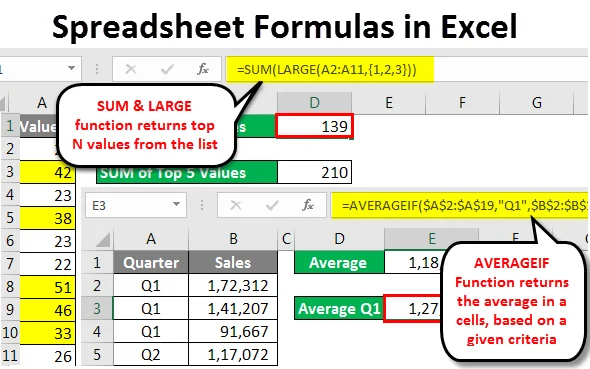
SUM — adds up a range of numbers. =SUM(A1:A10) adds everything from A1 through A10. Way faster than typing out ten separate plus signs.
AVERAGE — calculates the mean. =AVERAGE(B1:B10) gives you the average of that range instantly.
COUNT — counts how many cells in a range contain numbers. Handy for quickly checking how many entries you’ve actually got.
IF — this one’s genuinely a bit magical once it clicks. =IF(A1>50, "Pass", "Fail") checks a condition, and returns one result if true, another if false. Grading systems, basically, live and breathe on this function.
VLOOKUP (or its newer cousin, XLOOKUP) — searches for a specific value and pulls back related information from elsewhere in the sheet. Genuinely one of the most powerful, and most intimidating-looking, functions for beginners. Worth the learning curve, honestly.
A Quick, Real Example
Say you’re tracking pocket money, or a small side hustle, whatever, and you’ve got a column of daily earnings in B2 through B31, one row per day of the month.
Instead of adding those thirty numbers by hand, which, let’s be honest, nobody’s doing without at least one mistake, you’d type =SUM(B2:B31) into another cell. Instant total. Change any daily number later, and the total updates itself, automatically, no extra work needed.
That’s the whole appeal, really, condensed into one tiny example. Set it up once, and let it keep working for you.
Common Mistakes Beginners Make
I’ve made basically all of these myself at some point, so no judgment here, genuinely.
Forgetting the equals sign. Type SUM(A1:A10) without the = at the start, and the spreadsheet just treats it as plain text. Looks identical, works completely differently.
Mixing up commas and colons. A colon (:) means “everything between these two cells.” A comma (,) means “just these specific cells, not the ones in between.” Mixing them up is an incredibly common, and honestly pretty forgivable, early mistake.
Referencing the wrong cell. Easy to do, especially in a big sheet. Always double-check your ranges actually cover what you think they cover before trusting the output blindly.
Not using absolute references when needed. Normally, when you copy a formula down a column, the cell references shift automatically. Sometimes, though, you want one reference to stay fixed. That’s where a dollar sign comes in, $A$1 locks that reference in place, no matter where you copy the formula to.
Why Bother Learning This at All?
Honestly? Because it saves an absurd amount of time, and once it clicks, it genuinely changes how you think about organising information.
Students use formulas for grade tracking, budgeting assignments, science lab calculations. Small business owners use them for profit tracking, invoicing, inventory counts. Basically anyone dealing with repeated numbers, in any context, benefits from not doing the same calculation by hand fifty separate times.
I think there’s also just a confidence thing that comes with it. The first time a formula actually works, correctly, on the first try, it’s weirdly satisfying. Small win, sure, but a real one.
A Few Tips for Getting Comfortable
Start small. Genuinely, don’t try to learn VLOOKUP on day one. Master SUM and basic math operators first. Build confidence, then layer complexity on top gradually.
Use real data you actually care about. Budgeting your own spending, tracking your own grades, something with genuine stakes, learning sticks a lot better than a random practice worksheet ever will.
Don’t be afraid to break things. Spreadsheets are forgiving. Undo exists. Experiment freely, and you’ll learn faster than just reading about functions in the abstract.
Final Thoughts
Spreadsheet formulas look intimidating at first, all those letters, numbers, and symbols crammed together. But underneath, it’s really just simple math logic, stacked up and automated.
Learn the basics properly, SUM, AVERAGE, IF, cell references, and you’ve genuinely covered about 80% of what most people ever need day to day. Everything past that is just extra tools in the same toolbox, waiting for when you actually need them.
Useful links:
- Microsoft Support: Overview of Formulas in Excel
- Google Docs Editors Help: Use Formulas in Google Sheets
- ExcelJet: Excel Formulas Guide
About The Author